 ArchiSpark
Workspaces
The overview dashboard and workspace (ArchiMate model) management.
Home (/)
The home page is a simple starting point: quick links to Overview,
Workspaces, Dashboards, and Settings. If your account doesn't belong to any
organization yet, it shows that state instead — an owner, an editor, or an
Admin adding itself from /platform/organizations/:id must grant you
membership before you can create or open a workspace.
Overview (/overview)
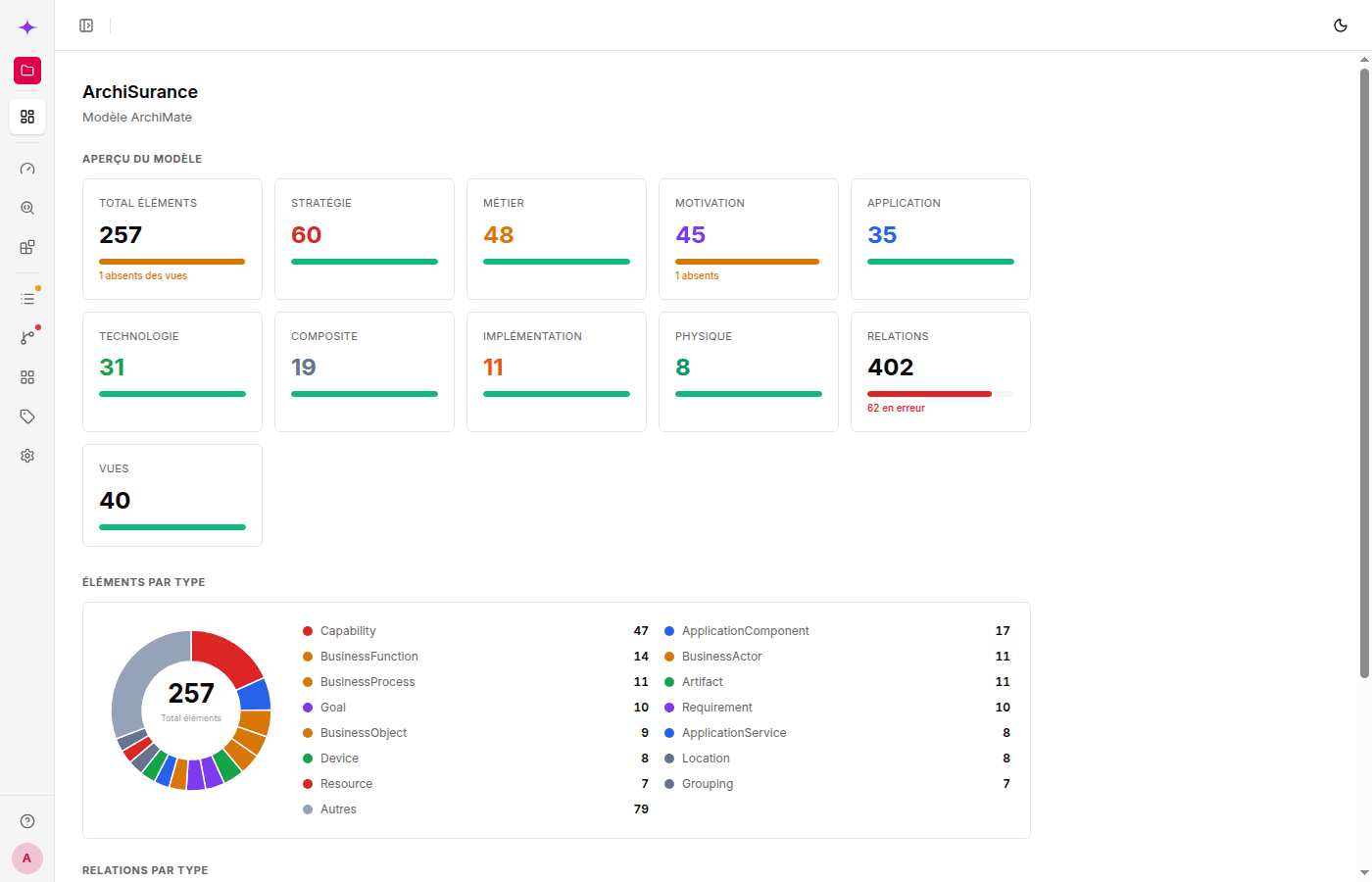
The dashboard displays:
- The active model's name, documentation, and version
- Stat cards: total elements, counts per layer (sorted by volume), relationships, and views — each with a small progress bar highlighting elements absent from every view or relationships with an ArchiMate conflict
- Donut charts: elements by type and relationships by type (top types, with an “Other” slice for the long tail)
Layer cards use the standard ArchiMate palette (yellow = Business, blue = Application, green = Technology, and so on).
Workspaces (/workspaces)
A workspace is an ArchiMate model (elements, relationships, views, and properties). Your organization can contain several workspaces, for example one per project or business unit.
The page lists all the workspaces you can access, with the active workspace marked.
Create a workspace
Click + New workspace:
- Name — required
- Description — optional
The new workspace is created and activated automatically, and you are taken to the Overview.
Switch to / activate a workspace
Click anywhere on a workspace row to activate it (unless it is already active) and open its Overview. The active workspace determines which elements, relationships, views, and properties are displayed throughout the application.
Renaming, exporting, or deleting the active workspace is done from Settings, with Owner or Editor access.